How to add captions to a video
On this page
- Open captions vs closed captions
- How to add captions to a YouTube video
- How to add captions to a TikTok video
- How to add captions to an Instagram Reel
- How to add captions in CapCut
- How to add captions in Canva
- How to add captions on iPhone
- What makes captions easy to read
- Adding captions to lots of clips at once
- Common questions
To add captions to a video, generate them automatically with a speech-to-text tool (YouTube Studio, TikTok, Instagram, CapCut and Canva all have one built in), read through and fix any wrong words, then either burn them into the video or upload them as a caption file (SRT). For Shorts, Reels and TikTok, burn them in. For long YouTube videos, upload a caption file.
That decision (burned in or separate file) is the one most guides skip, and it changes which tool you should use. So let's start there.
Open captions vs closed captions
Closed captions are a separate text track. Viewers can turn them on or off, YouTube can index them, and you can fix a typo without re-exporting the video. The usual file format is SRT: a plain text file of numbered lines with start and end times.
Open captions (also called burned-in or hard-coded captions) are part of the picture. They're always visible, you control the font and position, and they look the same in every app.
| Closed captions (SRT) | Open captions (burned in) | |
|---|---|---|
| Viewer can turn off | Yes | No |
| Style control | Player decides | You decide |
| Edit after upload | Yes | Re-export needed |
| Best for | Long YouTube videos, courses, accessibility | Shorts, Reels, TikTok, LinkedIn clips |
Short-form feeds autoplay muted for many viewers, and the platforms' own caption tracks are small and easy to miss. That's why nearly every successful talking clip has big, burned-in captions.
How to add captions to a YouTube video
- Open YouTube Studio and pick the video.
- Go to Subtitles in the left menu.
- YouTube generates automatic captions for many languages shortly after upload. Click Duplicate and edit on the automatic track to fix mistakes, or Add to upload your own SRT file.
- Publish the track.
What goes wrong: leaving auto captions unchecked. They're usually close, but names, brands and jargon come out wrong. On a long video, fixing them takes 10 to 20 minutes and it's worth it: correct captions also help YouTube understand what your video is about.
How to add captions to a TikTok video
TikTok has built-in auto captions. After recording or uploading, tap Captions in the editing tools, wait for the transcription, then tap the pencil to fix words before posting.
TikTok's captions are functional but plain. If you want styled, word-by-word captions that match your brand, add them in an editor before you upload.
How to add captions to an Instagram Reel
In the Reels editor, add a Captions sticker. Instagram transcribes the audio, and you can change the style and colour and fix words by tapping the text. Like TikTok, it's fine for quick posts and limited for branded clips.
How to add captions in CapCut
CapCut's auto captions are the most popular free option for short-form creators:
- Import your clip and tap Text → Auto captions.
- Choose the spoken language and generate.
- Review every line. Tap a caption to fix a word.
- Pick a caption template. The animated word-highlight templates are the ones you've seen all over Shorts.
- Export at 1080×1920.
How to add captions in Canva
In the Canva video editor, select the video and use the Captions option to auto-generate subtitles. Canva is handy if you're already designing there, but its caption styling is less flexible than dedicated short-form tools.
How to add captions on iPhone
The simplest route on iPhone is to use the app you're posting to (TikTok, Instagram, YouTube) and turn on its auto captions. For styled captions, CapCut on iPhone works the same way as on desktop.
What makes captions easy to read
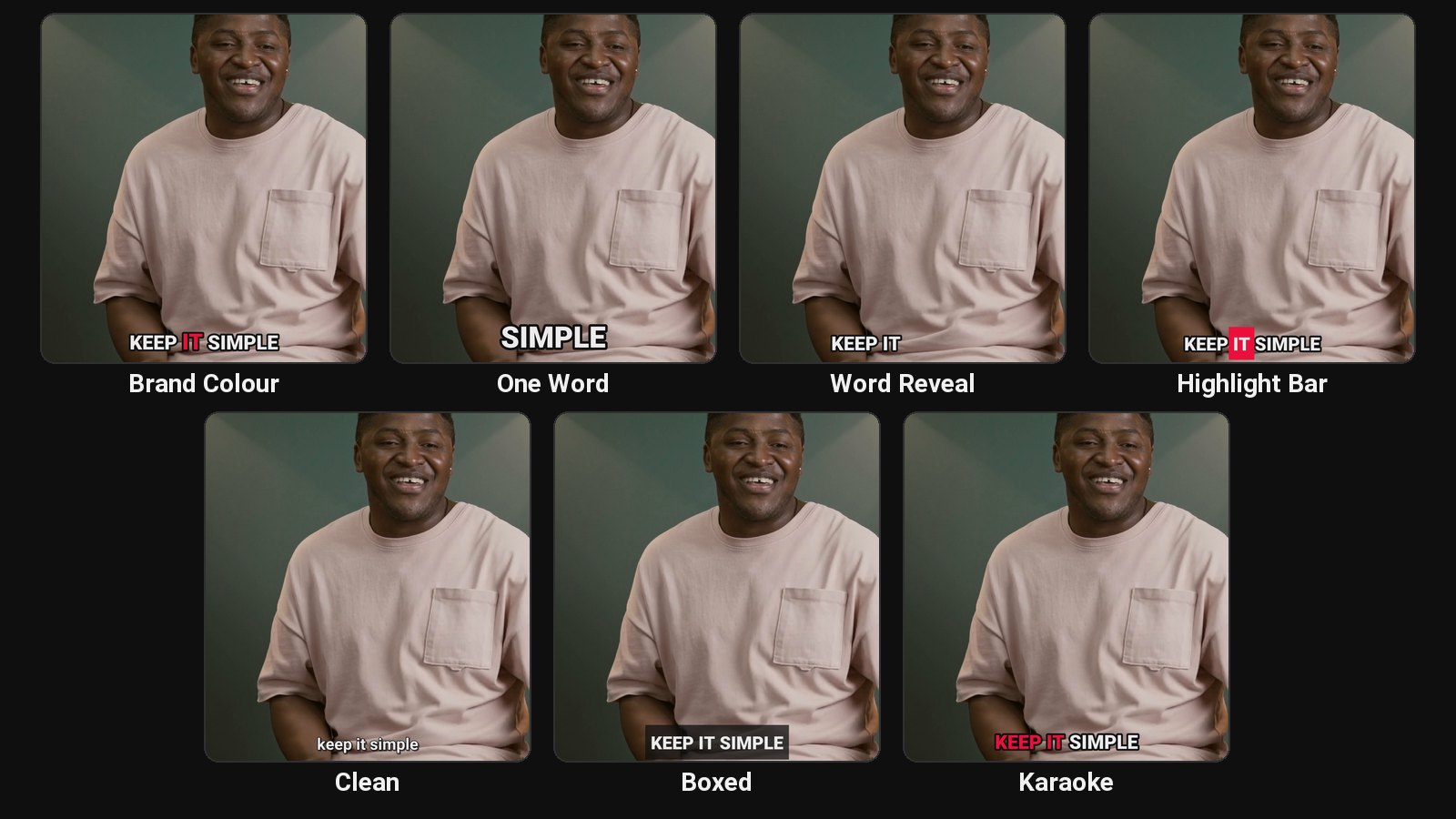
Look at the talking clips that do well in your feed and the captions have a few things in common:
- Word-by-word timing. Each word appears (or lights up) as it's spoken. It pulls the eye along with the voice.
- Big and bold. Short-form captions need to read at a glance on a phone. Think 3 to 5 words on screen at a time.
- Middle of the frame. The bottom fifth is covered by the post caption, username and buttons.
- One highlight colour. The spoken word pops in a single colour. Use your brand colour so your clips are recognisable.
- High contrast. White text with a dark outline or box stays readable on any background.
You can see seven of these styles side by side on ClipFlame's caption styles section, from bold Brand Colour captions to a quiet Clean style for more serious content.
What goes wrong: captions in the wrong language model. If the speaker switches languages or has a strong accent, auto captions degrade fast. Pick the language explicitly when you can.
Adding captions to lots of clips at once
Captioning one video by hand is fine. Captioning eight clips a week, every week, is where people give up.
If you're clipping from long videos, it's faster to caption the whole thing once and cut clips from the captioned transcript. Or use a clip tool that does both steps together. ClipFlame detects the spoken language (9 languages, including Hindi in Devanagari script), cuts the clips, and burns in word-by-word captions in your chosen style. You can fix any word in the editor and re-render for free. More on the clipping side in our podcast clips guide.
More caption guides: captions on TikTok, captions on Facebook Reels, captions in CapCut, adding subtitles to an MP4, and closed captions vs subtitles. For the popular styles, see Hormozi-style captions and MrBeast-style captions, and compare tools in the best caption generators.
Common questions
How do I add captions to a video for free?
Use the auto captions built into YouTube Studio, TikTok, Instagram, CapCut or Canva. All of them have a free option. Always proofread before you publish.
What's the difference between captions and subtitles?
In everyday use they mean the same thing. Strictly, subtitles translate speech for viewers who don't speak the language, while captions (especially closed captions) also describe sounds for viewers who can't hear them, like "[laughter]" or "[music]."
Should I burn captions into my YouTube Shorts?
Yes. Burned-in captions look the same everywhere and are much easier to read than the platform's own caption track. For long YouTube videos, upload a caption file instead so viewers can turn it off.
Do captions help SEO?
On YouTube, a correct caption track gives YouTube the full text of what you said, which helps it understand the video. Burned-in captions are part of the picture, so YouTube can't read them as text. For the long video, pair captions with a good description, tags and chapters.