AI thumbnail maker
On this page
ClipFlame is an AI thumbnail maker that puts you in the design. Add a photo of your face and a screenshot or two from your video, type what you want, and ClipFlame designs two thumbnails in the layout you pick, with you in them. Your screenshots also come back as two thumbnails with a headline stamped on. With a credit pack, edit any part by clicking it and describing the change. Your first credit is free, no card needed.
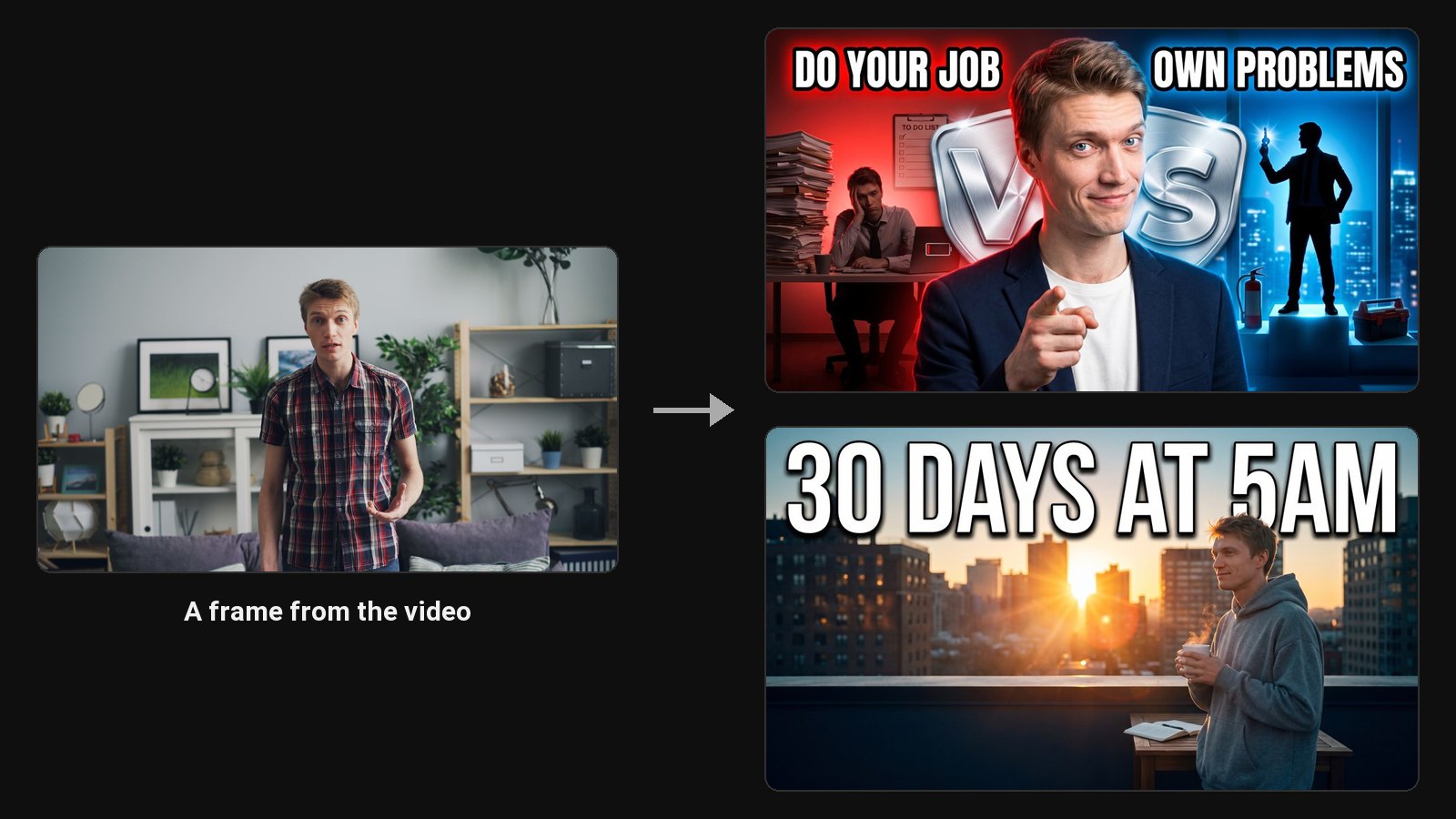

Most AI image tools start from a blank text box and a persona you have to train first. ClipFlame needs one photo of you and a line about the video. It writes the full brief itself: which layout fits, what goes in the scene, and the three or four words on top. Screenshots from your video give it the real setting, so the design matches what people will watch.
How it works
- Type your video's title and start a project. Already made clips in ClipFlame? Press Thumbnail on a clip instead, and ClipFlame takes your face, the frames and what you said from the clip.
- Add a photo of your face and, if you like, up to six screenshots from your video.
- Describe the thumbnail, such as "me holding the keys, the price in big green numbers".
- Pick a layout, or choose the AI Designer to build the design from your description alone.
- Get your thumbnails. Each generation gives you two AI designs, plus two thumbnails cut from your screenshots, at 1280 × 720 for YouTube or 1080 × 1920 for Shorts, Reels and TikTok.
- Edit and download. Change a spot, your expression, the style or the text, then download a JPG small enough to upload from YouTube Studio or the phone app.
24 layouts that top channels use
The layouts are the compositions that work on YouTube again and again, grouped by the kind of video:
| Group | Layouts |
|---|---|
| YouTube | Center Stage, Big Reaction, Podcast, Podcast Duo, Simple Text, Before / After, Versus, Explainer, Object in Hand, In the Scene, Big Number, Notification, Circle & Arrow, Whiteboard |
| Faceless | Hero Object, Split Compare, POV, Foreground Focus |
| Shorts (9:16) | Podcast, Background Split, Text on Image, Object in Hand, In the Scene, Timeline |
Want something no layout covers? The AI Designer builds the design from your description, title and screenshots. Or copy the layout of a thumbnail you like by uploading it or pasting the video's YouTube link.
Your face, without a photo shoot
Add up to three photos where you face the camera, in focus and well lit, and ClipFlame keeps your likeness in every design. Save them once and they fill in on every new thumbnail. Making clips in ClipFlame? Press Thumbnail on a clip and it picks the clearest frames of your face for you. Prefer no person at all? Use a faceless layout.
Edit by clicking
Every design can be changed without starting over. Each edit makes a new version, and you can go back to any of them.
- Change a spot. Click the part you want changed and describe it: "make the shirt blue", "add a stack of cash on the desk". See the AI thumbnail editor.
- Change your expression to happy, surprised, shocked, angry, excited or curious, keeping your face. See the expression changer.
- Change the look to Editorial, Realism, CCTV footage, Trailcam, Digital Illustration or Vintage.
- Edit the text as real text: ClipFlame lifts the words off the image so you can retype, move and restyle them. See the thumbnail text editor.
What makes a thumbnail get clicked
The AI follows the same rules a good designer does:
- One face, one feeling. A clear face with a readable emotion takes the eye first.
- Three to five words. Thumbnails are mostly seen small on phones, so the text has to read at 168 pixels wide.
- Don't repeat the title. The text on the thumbnail adds to the title instead of saying it twice.
- High contrast. Bright subject, darker background, and colours that stand out from the rest of the feed.
Check how a design looks in the feed with the free thumbnail tester before you publish.
Pricing
Thumbnails are paid for with credits, separate from any ClipFlame plan and with no subscription. One credit makes one generation: two AI designs, plus two thumbnails cut from your screenshots. Each credit in a pack also adds 3 AI edits. Every account gets its first credit free: one AI design, plus one thumbnail from a screenshot.
| Pack | Price | Per credit |
|---|---|---|
| 1 credit | Free, once | |
| 5 credits | $10 | $2.00 |
| 10 credits | $18 | $1.80 |
| 20 credits | $30 | $1.50 |
Credits don't expire. A generation where both designs fail gives the credit back, and a failed edit gives the edit back. Editing text layers is always free.
Common questions
Is the AI thumbnail maker free?
Your first credit is free: one AI design, plus one thumbnail from a screenshot, no card needed. After that, credits come in packs from $10 for 5.
Do I need a ClipFlame plan to make thumbnails?
No. Credits work on their own, with or without a plan, and there's no subscription.
Do I need to upload my whole video?
No. A photo of your face is enough, and screenshots from the video help. Save your photos once to use them on every thumbnail. If you made clips in ClipFlame, press Thumbnail on a clip and it uses the clip itself.
Can I make thumbnails for YouTube Shorts, Reels and TikTok?
Yes. Pick the 9:16 format and the Shorts layouts. See the YouTube Shorts thumbnail maker.
Can I use AI thumbnails on YouTube?
Yes. YouTube allows AI-made thumbnails as long as they reflect what's in the video and follow its thumbnail policy. More in are AI thumbnails allowed on YouTube.
Who owns the thumbnails?
You do. Download them and use them anywhere.