ClipFlame for livestreamers
On this page
Livestreamers use ClipFlame to turn stream VODs into captioned vertical clips: gaming streams, just-chatting, IRL, YouTube Lives and Facebook Lives. Paste a Twitch or Kick VOD link or upload the file, and it finds the moments worth posting, from a clutch play or a crash to a line that made chat explode. Gaming clips come out with your facecam on top of the gameplay.
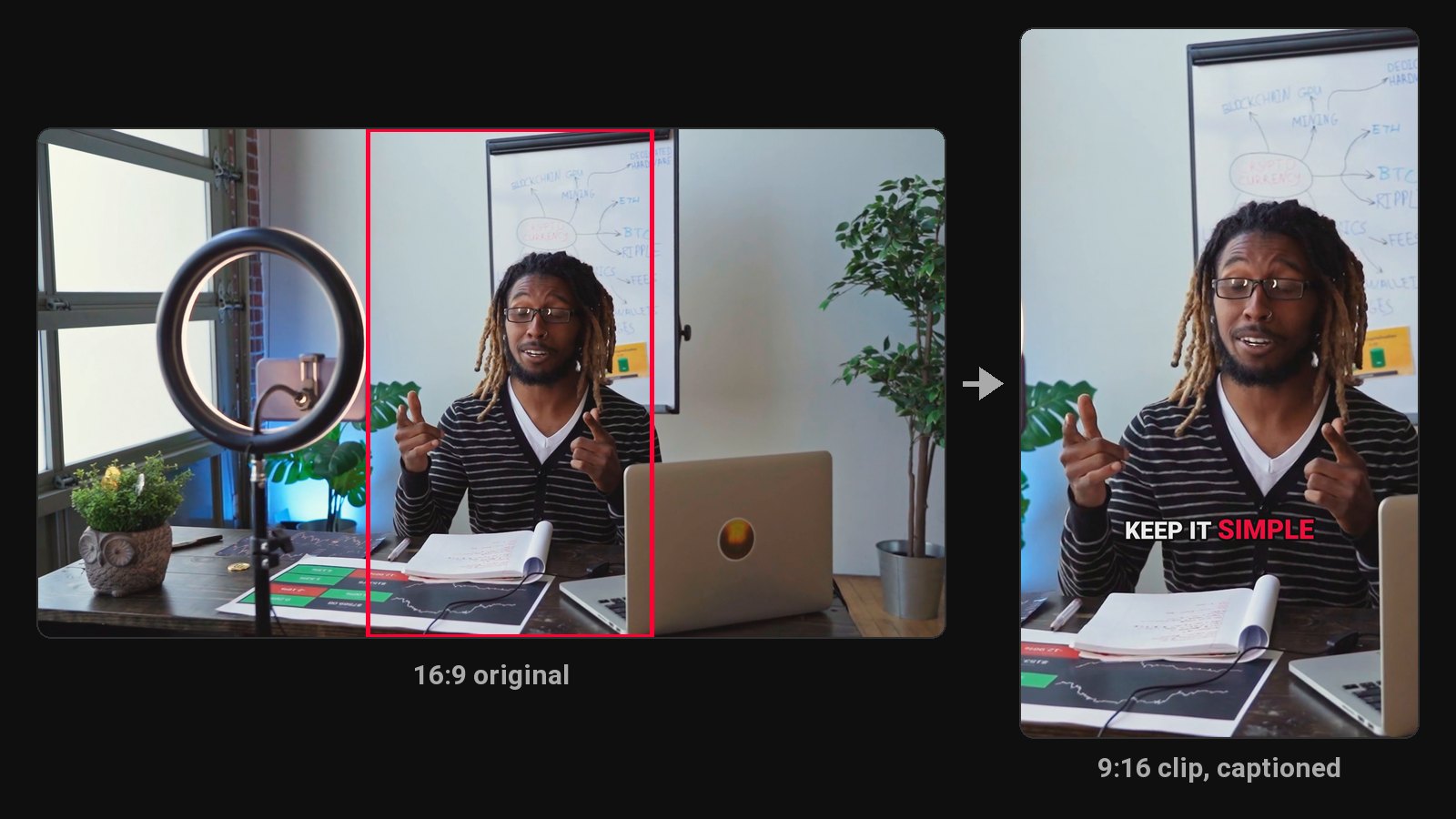
A long stream has plenty of clip-worthy moments, but scrubbing through it to find them takes nearly as long as the stream. Clips are also how most people discover a streamer, since few newcomers join a live stream cold.
How it finds moments in a gaming stream
Choose Gaming (or Reaction, for streams where you watch videos) when you start. ClipFlame then looks at more than what's said:
- Sound. Screams, laughter and explosions show up as spikes in loudness.
- Chat. Add the chat log (a TwitchDownloader export or a YouTube live_chat.json) and bursts of messages and emotes like KEKW or Pog mark the moments chat reacted to.
- Clips your viewers made. For a Twitch VOD link, the clips viewers already cut from that stream count as votes.
- The screen. The AI looks at frames from around the strongest moments, so a crash, a death or a narrow escape gets picked even when nobody says a word.
Each clip starts a few seconds before the payoff, so viewers see the setup, and ends on the reaction.
How to clip a stream
- Paste the VOD link from Twitch or Kick, or upload the file. Google Drive and Dropbox links work too.
- Choose the type of video: Talking, Gaming or Reaction. Add the chat log if you have it.
- Review the clips. Every clip has a virality score, sorted best first. Fix usernames and slang in the captions, and re-render for free.
Facecam on top, gameplay below
For a gaming stream ClipFlame finds your webcam overlay and stacks it above the gameplay, the layout gaming Shorts use. If it picks the wrong spot, or you don't use a facecam, drag the box in the editor or switch it off and the whole frame is shown. For talk streams, the crop follows the faces in each shot.
What you get
- Clips of 15 to 90 seconds in 9:16, 4:5 and 1:1, with word-by-word captions in seven styles.
- On every plan: the scheduler posts the clips between streams, so your channels stay busy while you're offline.
Clipping a specific game? See the clip makers for Fortnite, Minecraft, Valorant, GTA and more games, or the Twitch, Kick and reaction clip makers.
Posting from Facebook Lives? See the Facebook Reels maker. For picking moments, see the highlight video maker and viral clip generator.
Pricing
Starter $19/month for 4 hours of video a month. Pro $39/month for 20 hours, so a 4-hour stream every week fits. A stream uses as many minutes as it is long. Your first 10 minutes of video are free.
Common questions
Does ClipFlame tell me which clips are best?
Yes. Every clip gets a virality score from 0 to 100, clips come sorted best first, and clips scoring 80 or more are highlighted. Each video gives up to 20 clips, so you can post the strongest first.
Can ClipFlame clip a Twitch stream from a link?
Yes. Paste the VOD link (twitch.tv/videos/…). Kick VOD links work too. The VOD must be public; subscriber-only VODs can't be downloaded.
My stream is 5 hours. What do I do?
On Pro, upload it as one: a 5-hour stream uses 5 of your 20 hours. On Starter, split it into shorter parts first.
Does it work for gaming streams?
Yes. Choose Gaming and ClipFlame finds moments from the sound, the chat, your viewers' clips and the screen, as well as from what's said, and puts your facecam on top of the gameplay.